
Workstations
Workstations lists the computers running the Cirros client that are registered to your organisation, with their client version, when they were last seen, and their status. Click a workstation to view its details.
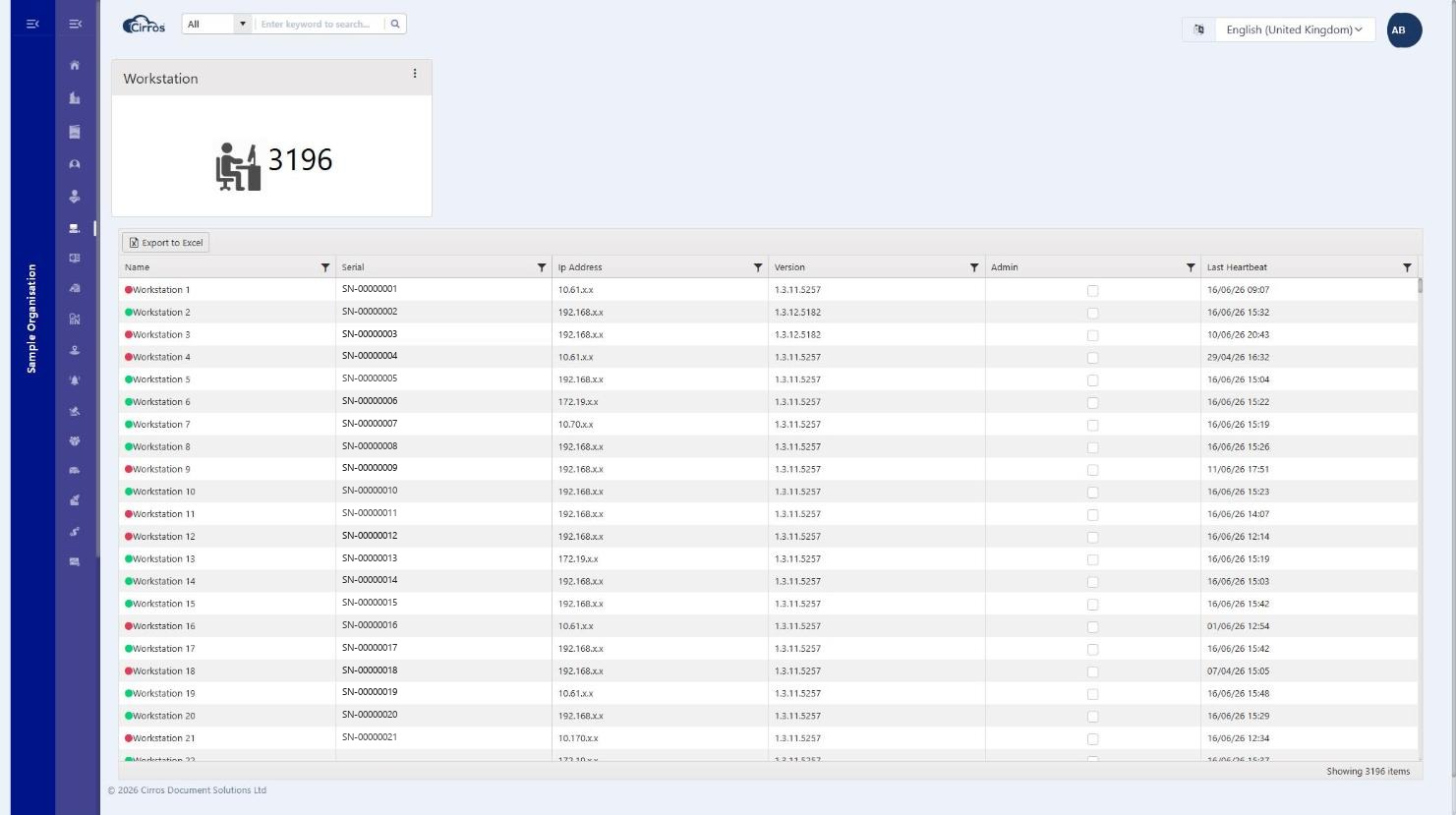
Right-click a workstation — and staged releases
Right-click a workstation (or double-click it) and choose Edit item to open its settings. As well as the machine name, serial number, IP address and registration time, the Edit panel is where you control which client releases a workstation receives, and when:
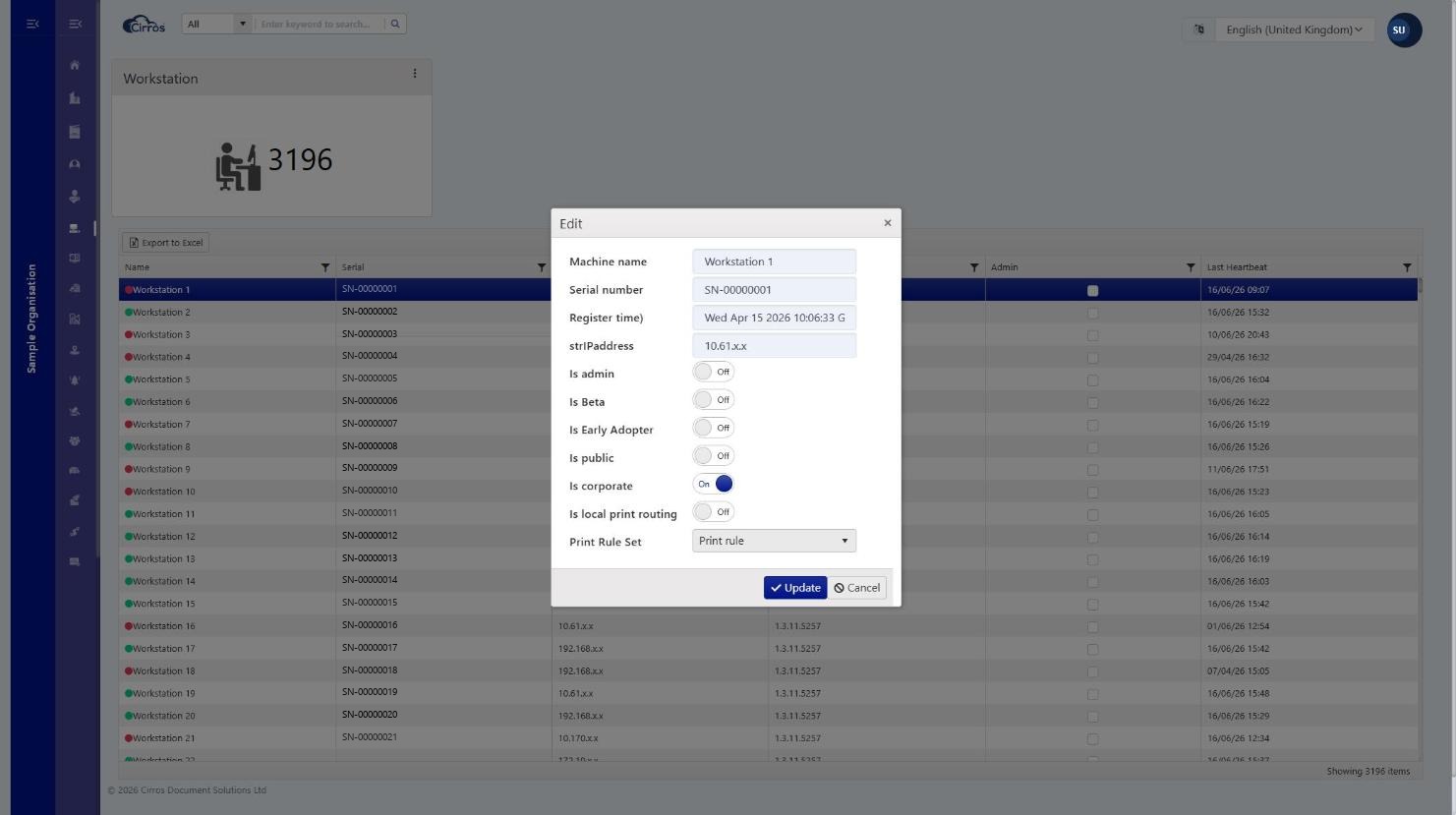
- Is Beta — the workstation joins the beta ring and receives new Windows client releases first, while they are still being trialled.
- Is Early Adopter — the workstation is an early adopter: it gets releases after beta, but ahead of the general rollout.
- Leaving both off means the workstation follows the standard, staged rollout — it updates once a release is promoted to general availability.
- Is public / Is corporate — classify the workstation as a public (shared) or corporate machine.
- Is local print routing — route this workstation’s print jobs locally.
- Print Rule Set — apply a named set of print rules to the workstation.
How staged release works. Use the rings to roll a new client out gradually: flag a few machines as Is Beta to pilot a release, promote to Is Early Adopter for wider testing, then let the standard rollout reach everyone else. The releases themselves are managed under Releases.
Note. Editing workstations and their release settings requires the Edit Workstations permission.