
Edit a workstation
Edit a workstation’s settings from the Workstations page of the Cirros Dashboard.
Before you start
You need the Company Admin role, or a role with the Edit Workstations permission, to edit a workstation. If you can’t see the Edit item option, you don’t have that permission. Ask your administrator.
Edit a workstation’s settings
- Open Workstations. Go to the Workstations page.
- Open the workstation. Double-click the workstation, or right-click it and select Edit item.
- Make your changes. The Edit window opens. You can:
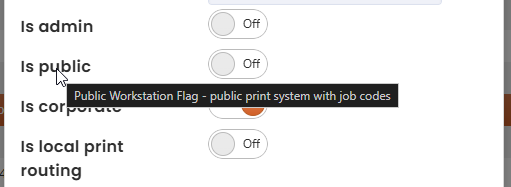
- Turn on Is public to configure a public print system with job codes.
- Turn on Is corporate. It is on by default for corporate workstations.
- Turn on Is local print routing to automatically route print jobs to local printers, based on rules.
- Change the Print Rule Set using the drop-down menu.
- Save. Click Update to save your changes.
Tip. Hover over an option to see more information about it.
Release settings. The same Edit window has the Is Beta and Is Early Adopter switches, which choose when a workstation receives new client releases. See Workstations and Enabling a workstation for client updates.