
Navigating the dashboard
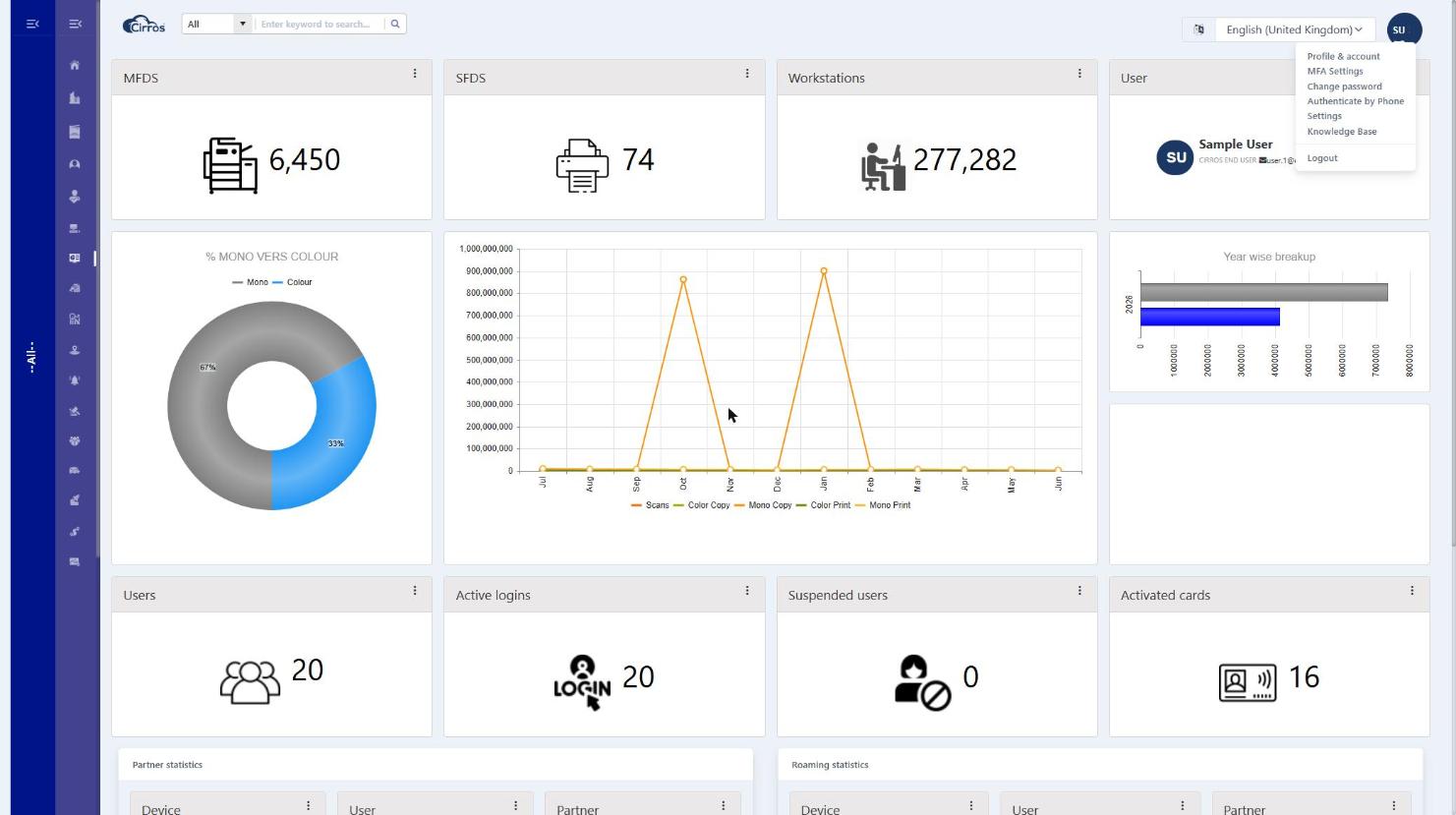
The navigation menu runs down the left of every page and is organised into sections.
- Direct links open a page straight away: Home, Company, Devices, Users, Disabled Users, Workstations, Statistics, Reports, Analysis and Device Location.
- Grouped sections expand to reveal related pages — click the heading (it has a chevron ›) to open or close it: Subscriptions, Print Room and Releases.
You will only see the sections and pages your role allows.
Tip. The menu runs down the left of every page as a column of icons; hover over an icon to see its label, or use the menu button (top left) to reveal the full labels. You can see it on the left of every screenshot in this guide.
On every page
- Use the menu button (☰) to collapse the navigation menu; click again to pin it back.
- Click the Cirros logo to return to the Home page.
- Use the language drop-down to view the dashboard in another language.
- Click your initials, top-right, to open your account menu.
Working with tables and lists
- Hover over a column heading to see more information about that column.
- Click a column heading to sort; click again to reverse, and once more to return to the default order.
- Use the filter option on a column to narrow the list.
- Drag a column heading to reorder columns, or drag its edge to resize — your layout is remembered.
- Double-click a row to edit it (where your role allows), or right-click a row for quick actions.
Right-click actions. Many list pages offer a right-click menu on each row. The actions you see depend on the page and your permissions — the Users, Devices and Workstations pages are covered in detail in their own sections below.
Companies, partners & switching tenant
Cirros is multi-tenant: depending on your role you may manage a single company or many. The label down the left edge shows the company (tenant) you are currently working in; All means you are seeing every company you have access to.
To switch, click the menu button (top left) to open the company tree, then choose a company. The tree is grouped by cloud and partner: a partner sees the client companies that sit beneath them, while governance / Cirros roles can see and switch to any company. Choosing a company focuses the whole dashboard — pages, figures and reports — on that company.