
Devices
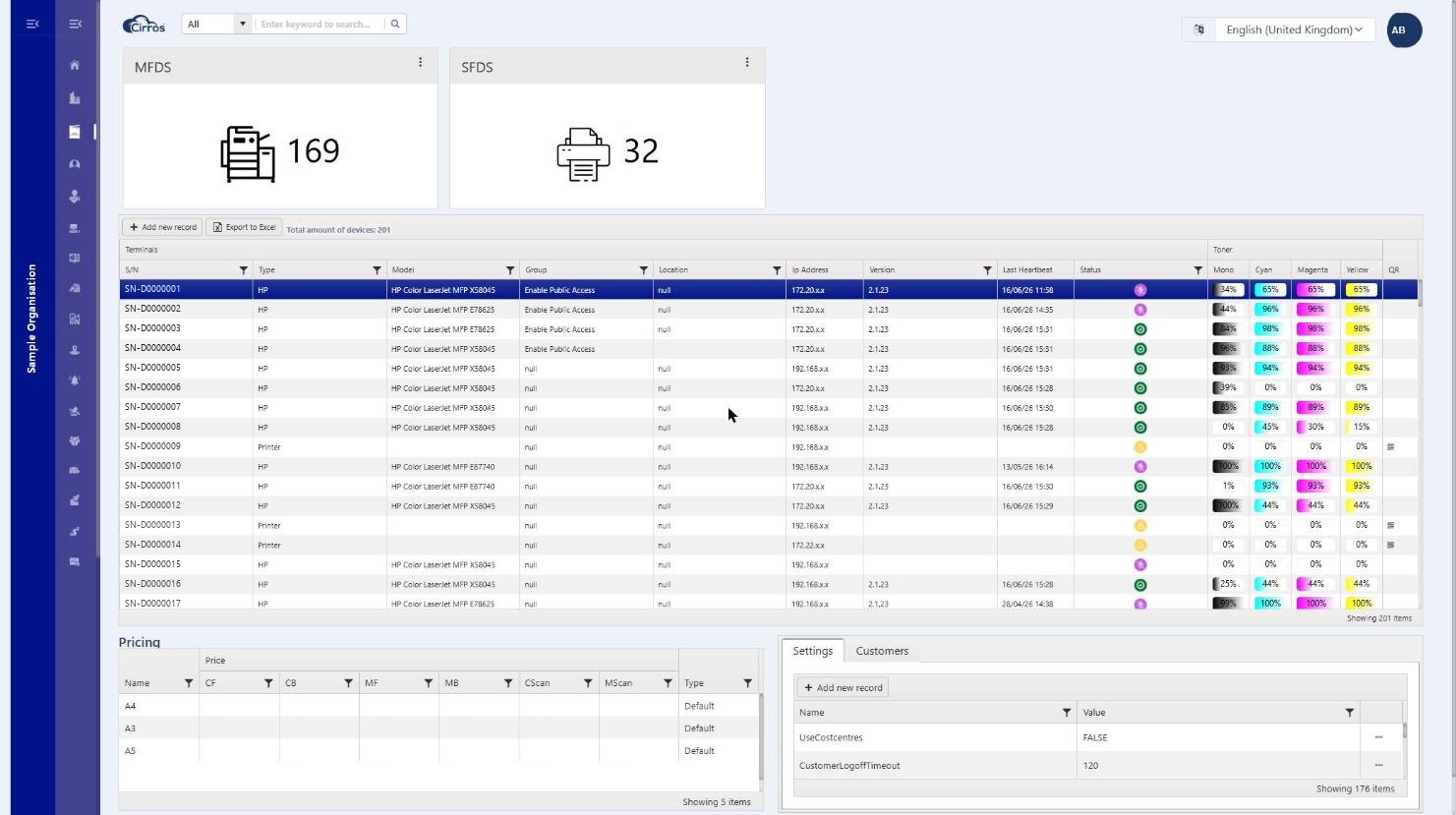
Devices lists the printers and multifunction devices (MFDs) registered to your organisation, so you can see and manage the fleet the print service uses. Click a device to view its details below the list.
What the columns show
- S/N, Type, Model — the device’s serial/code, make/type and model.
- Group — the device group it belongs to, used to organise devices and apply shared settings (for example a public-access group).
- Location and IP Address — where the device is, and its network address.
- Version — the connector/firmware version the device is running.
- Last Heartbeat — when the device last reported in to the service.
- Status — the device’s current state, shown as a coloured indicator; hover over it for the exact status (for example Online, Offline, or “Heartbeat not capable” for a device that doesn’t report in). It follows from the last heartbeat.
- Toner (Mono, Cyan, Magenta, Yellow) — remaining toner/ink for each, shown as a level bar and percentage.
- QR — a QR code for the device, used for mobile / pull-print release at the machine.
Right-click a device
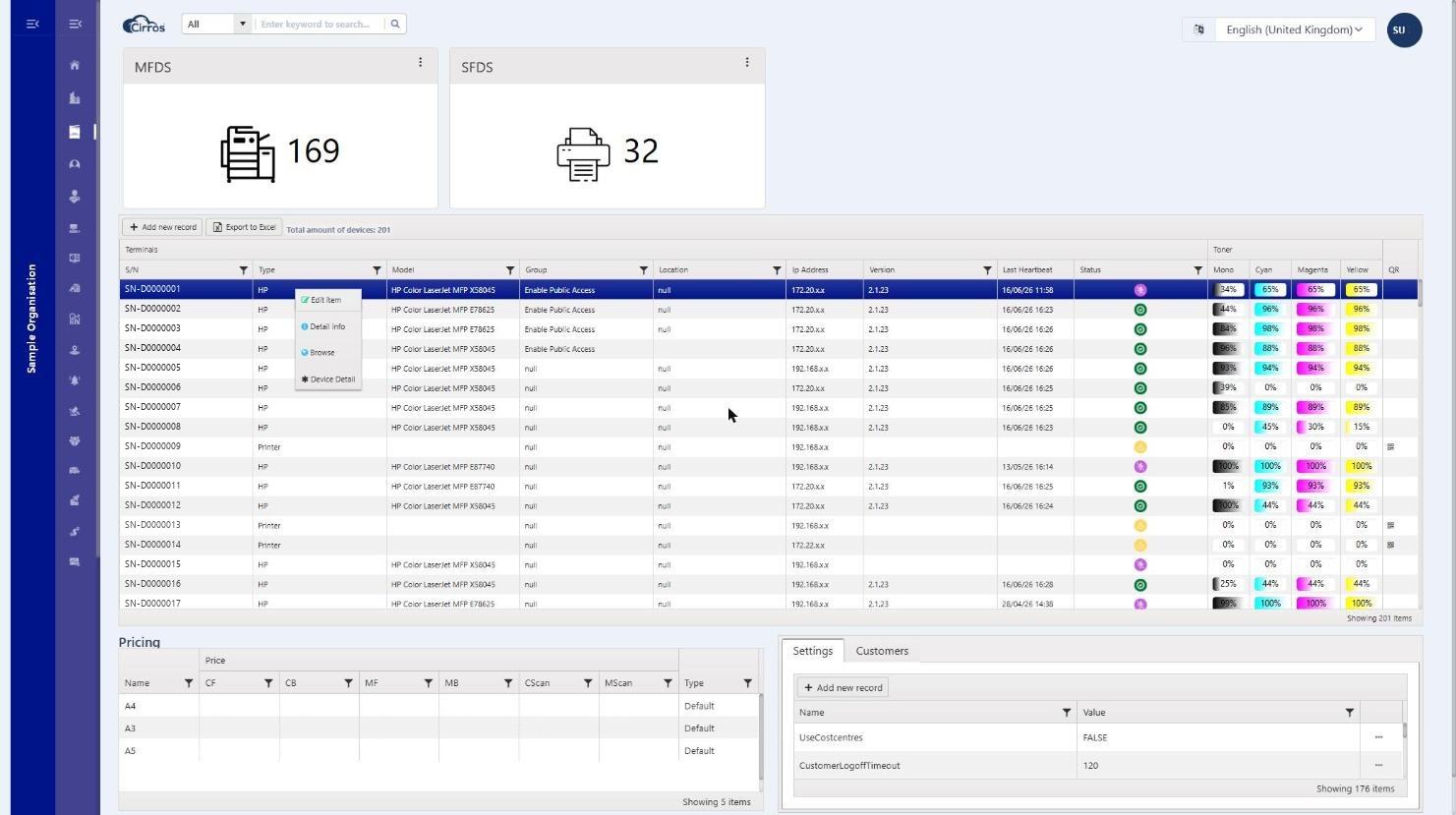
Right-click a device row for quick actions (the options you see depend on your permissions):
- Edit — open the device to change its settings. You can also double-click the row. (Requires Edit Devices.)
- Detail info — view recent transactions for the device. (Requires View Device Info.)
- Browse — open the device’s own web interface in a new browser tab, using its IP address. (Shown when the device has an address.)
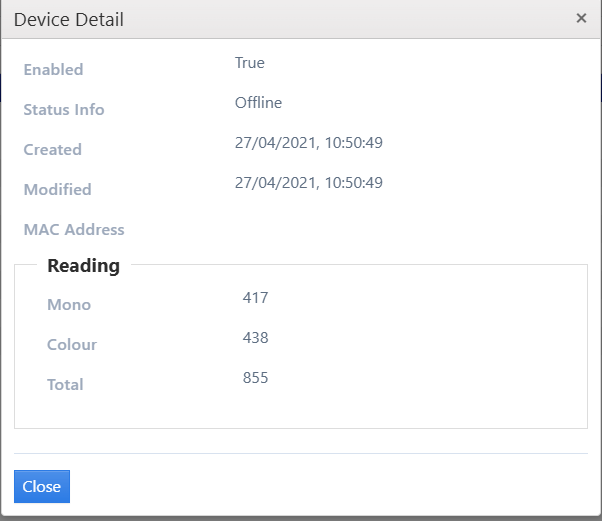
- Device Detail — show a quick summary of the device: whether it is enabled, when it was created and last modified, its MAC address and status, and this month’s mono, colour and total page counts.
Adding a device
Click Add new record above the list to register a device, fill in its details and click Insert:
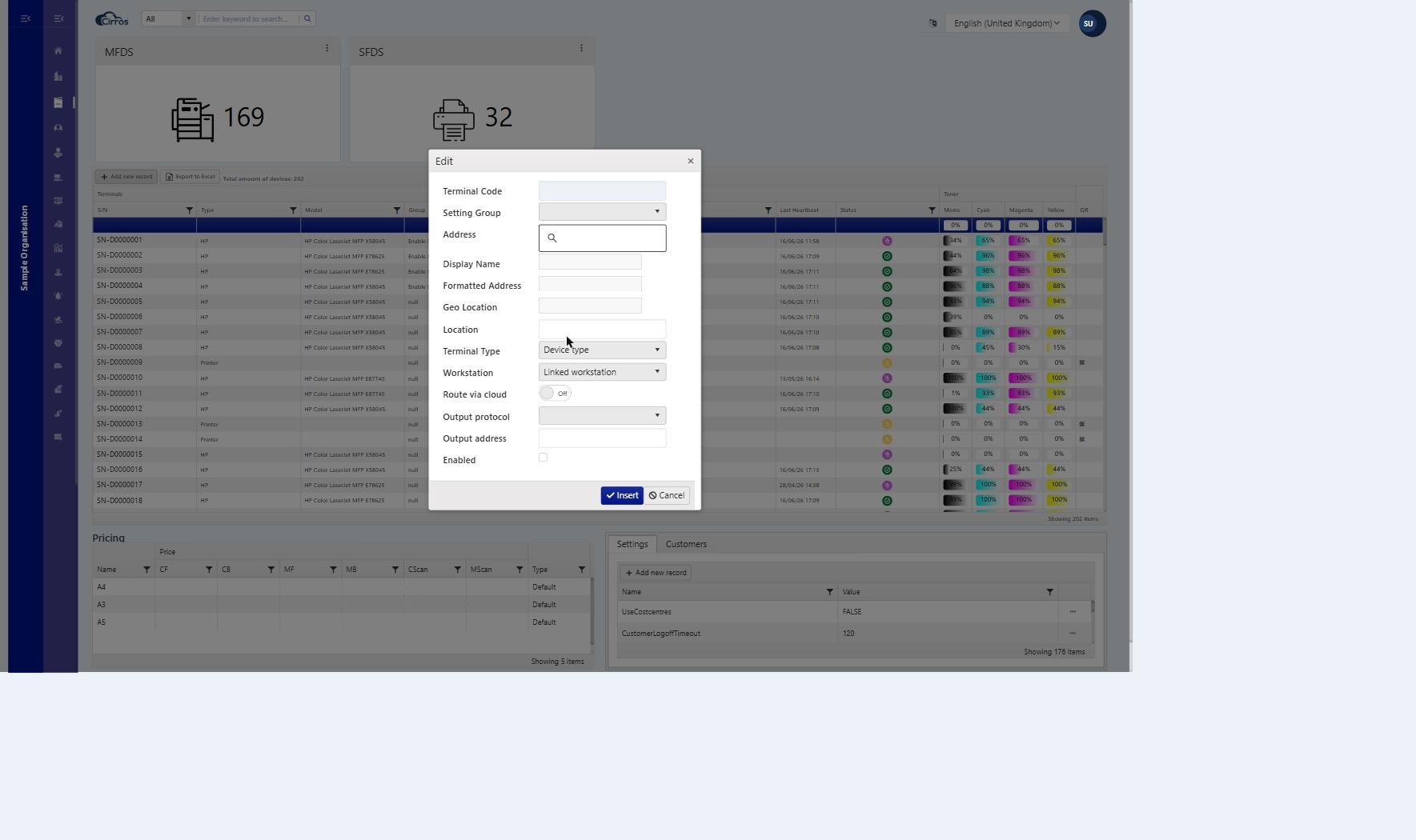
- Terminal Code — the device’s identifier (its serial / code).
- Terminal Type and Setting Group — the kind of device, and the settings group it follows.
- Display Name, Address / Formatted Address / Geo Location / Location — how the device is labelled and where it is (these feed Device Location).
- Workstation — a linked workstation, where applicable.
- Route via cloud / Direct printing enabled / Output protocol / Output address — how print jobs reach the device.
- Enabled — whether the device is active.
Device groups
Each device belongs to a group — shown in the Group column and set on the device’s Setting Group field (in the Add / Edit device form). A group is a named bundle of settings applied to every device in it.
You assign the group at the device level (choose a Setting Group when adding or editing the device). A group bundles the settings applied to every device in it — for example idle / background images, or scan-to-cloud options.
Note. Adding or editing devices requires the appropriate role (for example Edit Devices or MFD Admin).