
Set up multi-factor authentication
Multi-factor authentication (MFA) adds an extra layer of protection to your account, making it significantly more difficult for unauthorised users to gain access.
Note. Enabling MFA is strongly recommended.
MFA options
Cirros offers flexible MFA settings, so you can tailor your security measures to your organisation’s needs and risk profile. Used well, MFA significantly strengthens your print management system’s defences against unauthorised access.
Who MFA applies to
- Universal protection. Apply MFA to all user accounts.
- Administrative safeguard. Limit MFA to admin-level users only.
Supported methods
Cirros provides three MFA options:
- Email verification
- SMS code
- Phone call authentication
The MFA Settings page also lets you choose an authenticator app that generates a digit code.
Turn on or change MFA
Open MFA Settings
- Open the dashboard. Go to the Cirros Dashboard.
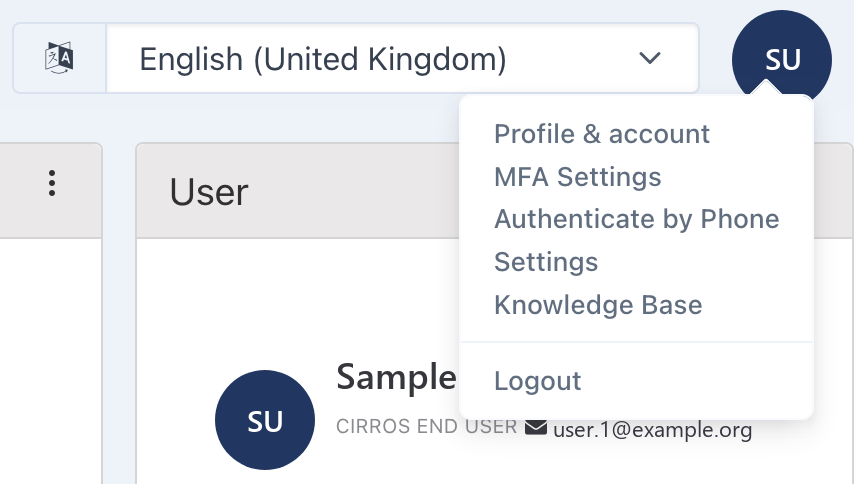
- Open your account menu. Click your initials in the top-right corner.
- Choose MFA Settings. Select MFA Settings from the menu.
Choose your methods
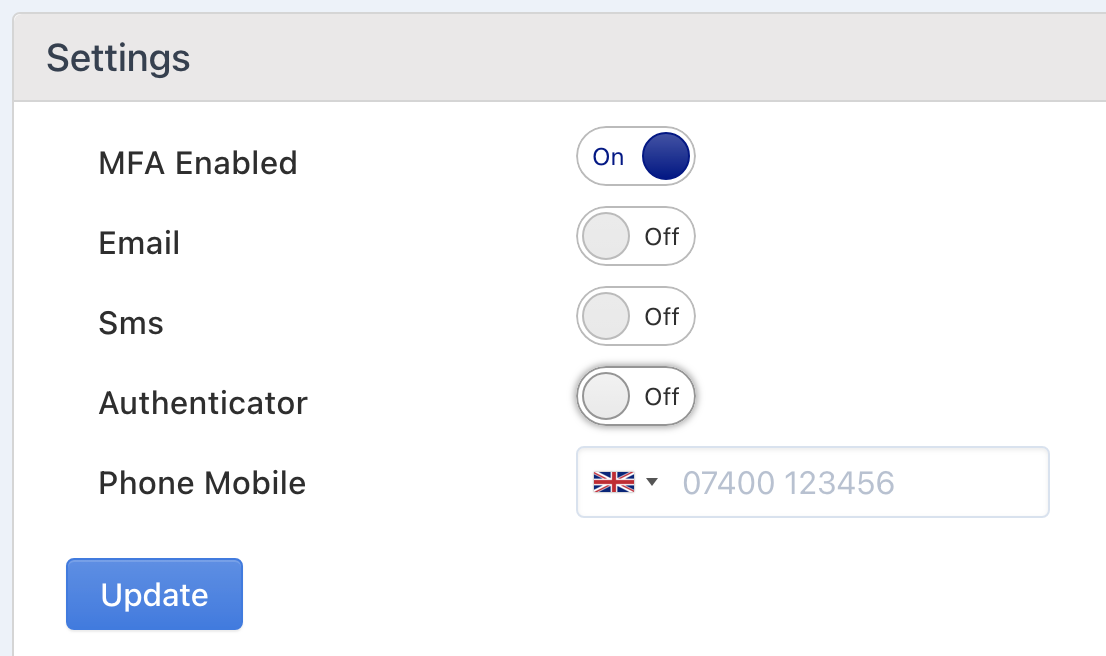
- Turn MFA on. Switch MFA Enabled to On.
- Choose at least one option.
- Select Email to receive one-time verification codes by email. Codes go to the email address on your profile.
- Select Sms to receive one-time verification codes by SMS.
- Select Authenticator to use an authenticator app that generates a digit code.
- Enter your Phone Mobile number to receive one-time verification codes by phone call.
- Save. Click Update to save your changes.
Note. Once MFA is enabled, you need to provide multi-factor authentication each time you log in.
For how MFA fits into signing in, see Signing in.