
The Cirros print ticket
The print ticket is the Cirros window that opens when you print a document to Cirros. You choose how the job should print, check the preview and the cost, then send it.
Opening the print ticket
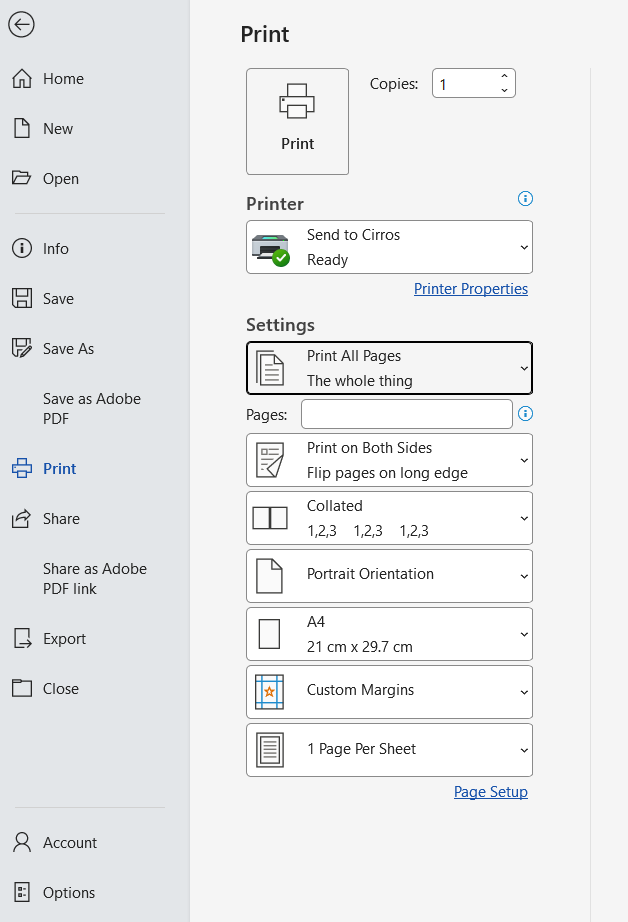
- Print as normal. In any application, select Print (usually File › Print).
- Choose the Cirros printer. Select Send to Cirros as the printer. In GovPrint organisations it is called Send to GovPrint.
- Select Print. The print ticket opens.
Direct Submission. If Direct Submission is turned on, the print ticket does not open: your job is sent straight to the cloud with the options you chose in the application.
What is on the print ticket
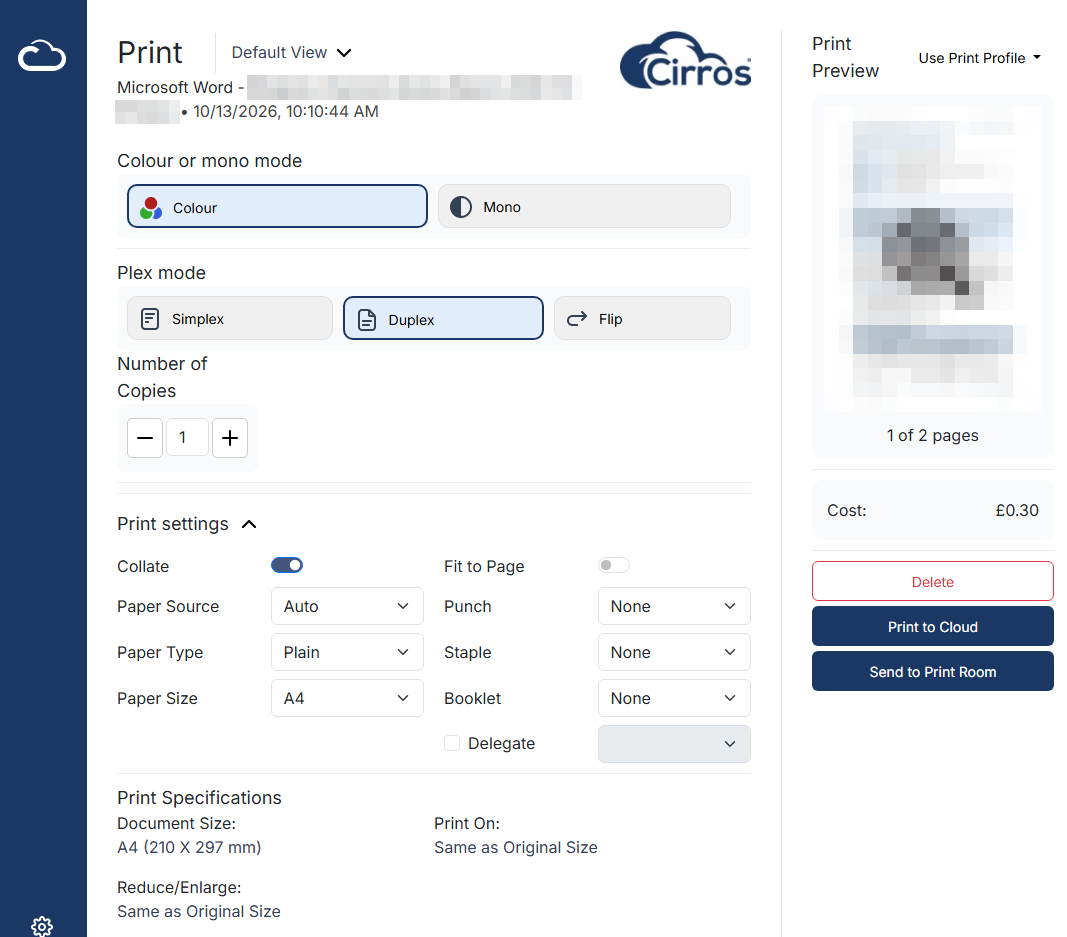
| Part | What it does |
|---|---|
| Colour or mono mode | Print in Colour or Mono. |
| Plex mode | Choose Simplex, Duplex or Flip. |
| Number of Copies | Use − and +, or type the number. |
| Print settings | Expand or collapse this section for Collate, Paper Source, Paper Type, Paper Size, Fit to Page, Punch, Staple, Booklet and Delegate. |
| Print Specifications | Shows the document size, what it will print on and any reduce or enlarge. |
| Print Preview | Shows the first page and the page count. Select the magnifier to look more closely. |
| Default View and Use Print Profile | Menus at the top of the window and of the preview. |
| Cost | The price of the job with the settings you have chosen. |
Sending the job
- Print to Cloud sends the job to the cloud. Release it at any Cirros printer.
- Send to Print Room sends the job to your organisation's print room, where you use one.
- Delete cancels the job.
As a guest or public user, after you select Print to Cloud a message shows your Job Code. Make a note of it before you select OK: you need it at the printer and it cannot be retrieved later. See Guest and public printing.
Click once. Select Print to Cloud once and wait for it to finish.
Related
- Direct Submission: print without the print window
- The Cirros Notification Client (change or delete a job you have already sent)
- Guest and public printing