
Paying for public printing
How you are charged when you copy, print or scan as a public user at a Cirros printer, and why you only ever pay for what actually prints.
How charges work
A charge is taken in six stages, from choosing a function at the printer to your finished job.
| Stage | What happens |
|---|---|
| 1. Choose a function | You select Copy, Print or Scan on the printer screen. |
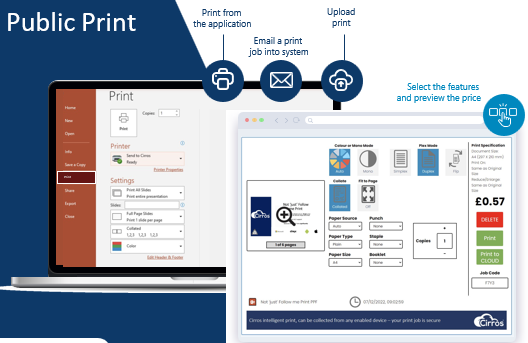
| 2. Enter your code | For a print, you enter your unique 4-character alpha-numeric code, which identifies your print job. |
| 3. Processing | Your job is processed at the printer. |
| 4. Cost shown | The cost appears on the Nayax Onyx payment terminal screen before you pay. |
| 5. Payment | You pay on the terminal, which pre-authorises the cost. |
| 6. Job completion | Once payment is authorised, your job is completed at the printer. |
Step by step
- Choose your function. When you reach the printer (MFD), select the function you need on the screen: Copy, Print or Scan.
- Enter your code (printing only). If you are printing, select Print and enter your unique 4-character alpha-numeric code. This code identifies your print job.
- Wait for processing. Your job is processed at the printer.
- Check the cost. The cost of your job is calculated and shown on the Nayax Onyx payment terminal screen, before you pay. Check that the amount is correct before you go on.
- Pay. Pay by card or, if available, use the override option on the Nayax Onyx terminal. The terminal pre-authorises the cost. You can use debit and credit cards or mobile payments.
- Collect your job. Once payment is authorised, your job is completed at the printer.
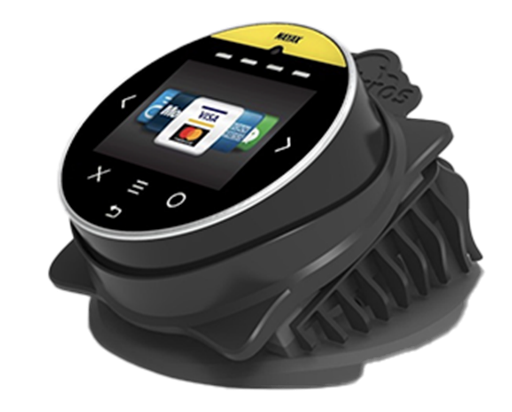

Check the amount. The cost is shown on the terminal before you pay. Make sure it is the amount you expect before you continue.
You only pay for what prints
We only charge you for what you actually print. Before your payment is finalised, we double-check the job details at the printer to make sure the charge is accurate.
Exact charge
If the printer does not fully complete your job, you are not charged at all.
Example. Your job costs 70p for 7 pages, but only 6 pages print. The whole amount is refunded.
Final charge
After we have checked the printed job, we finalise the transaction and you are charged the correct amount.
Your card details
Card payment is handled entirely by the payment terminal. Cirros never sees or stores your card details.
You can pay by tapping a contactless card or mobile wallet, or by inserting your card, and then following the prompts on the payment terminal.
If your payment is declined
Try the card again, or use a different card. A decline is handled by the payment terminal, not by Cirros, and you are not charged for a job that does not print.
If you do not collect your job
Nothing prints until you are at the device and your payment is authorised, so your document is not left in the tray for someone else to pick up. If you do not collect or pay for a job, it is held for a limited time and then removed automatically, so nothing of yours is left waiting on the system.
If nothing prints after you pay
Wait a few moments. If your job still does not print, ask a member of staff for help and quote your Job Code.
For the full guest workflow at the printer, see Guest and public printing.