The Cirros Notification Client
How to use the Cirros Notification Client in the Windows system tray to see your scanned files and print jobs, change or delete a job, and turn Direct Submission on or off.
Find the Cirros icon
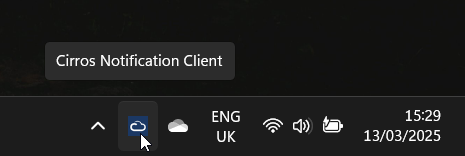
The Cirros Notification Client sits in the Windows system tray, usually in the bottom-right corner of your screen.
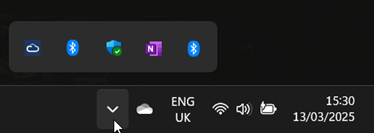
Can't see the icon? Select Show hidden icons (the small arrow) to see more icons. To keep the Cirros icon visible all the time, right-click the taskbar and select Taskbar settings. Expand Other system tray icons and switch the Cirros Notification Client On.
The Notification Client menu
Right-click the Cirros icon to open the Notification Client menu.
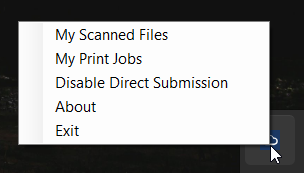
| Menu option | What it does |
|---|---|
| My Scanned Files | Lists your scanned files and lets you download one to your workstation. |
| My Print Jobs | Lists the print jobs held securely in the cloud, so you can edit or delete them. |
| Enable Direct Submission or Disable Direct Submission | Turns Direct Submission on or off. See Direct Submission. |
My Scanned Files
To see a list of your scanned files, or to download a scanned file to your workstation, right-click the Cirros icon in the system tray and select My Scanned Files.

My Print Jobs
To see a list of your print jobs held securely in the cloud, right-click the Cirros icon in the system tray and select My Print Jobs.
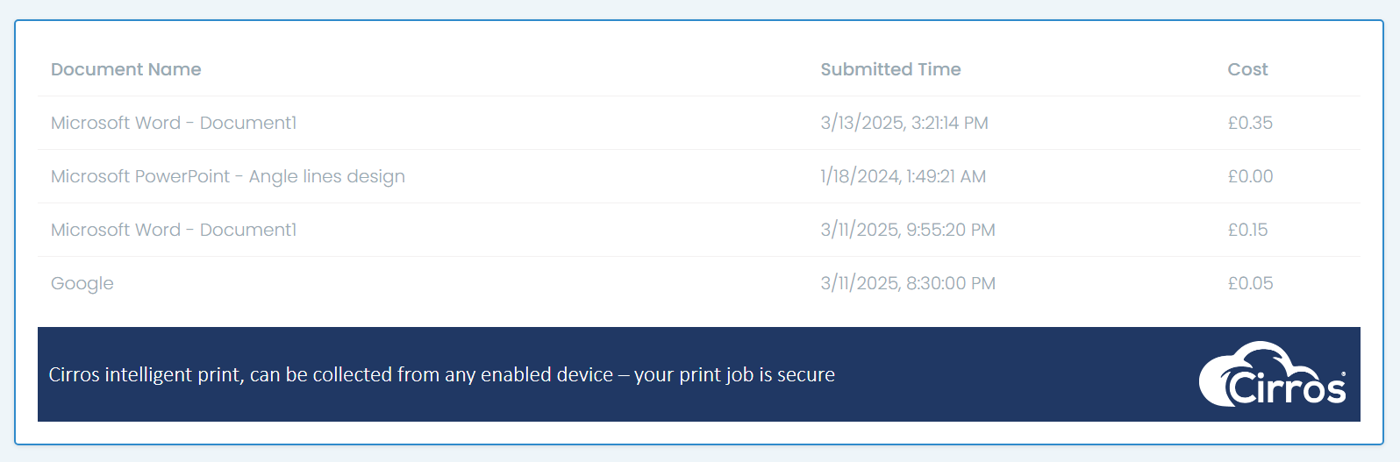
Edit or delete a print job
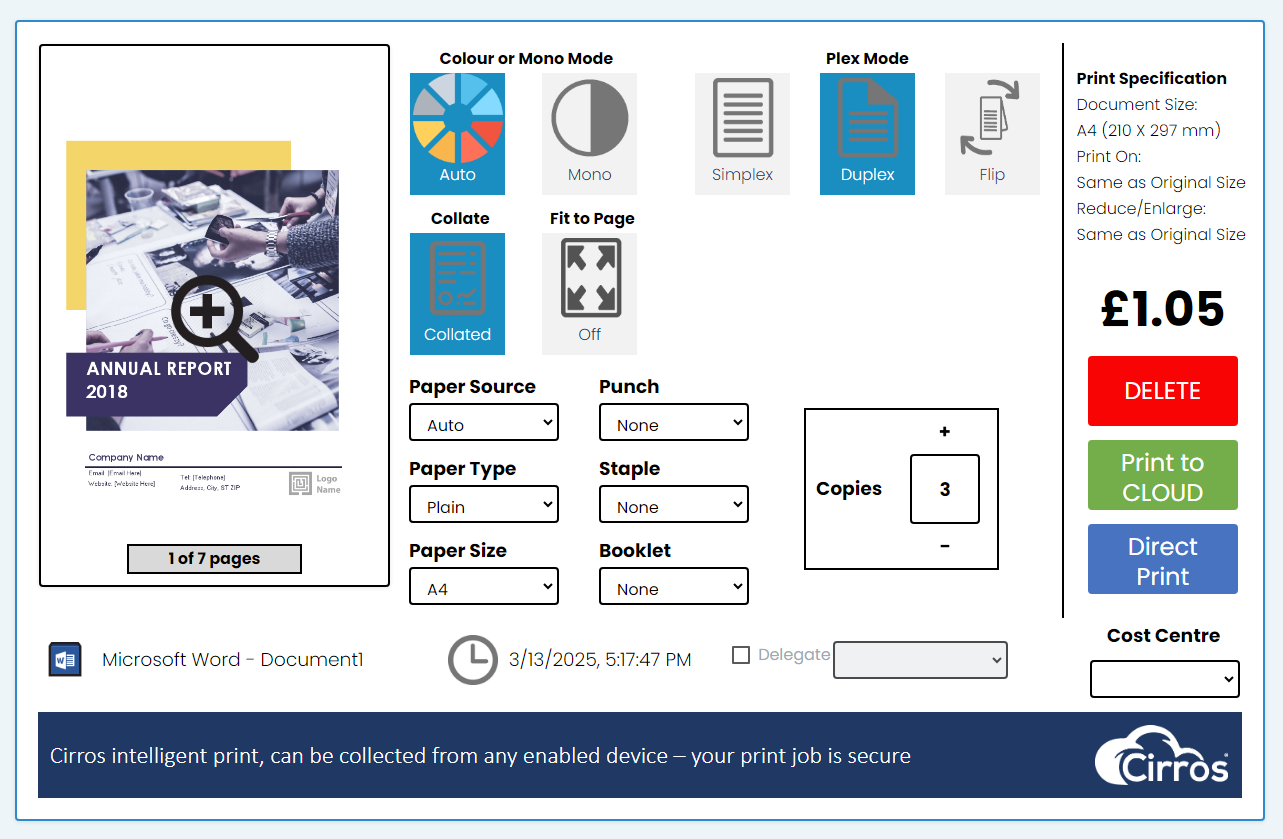
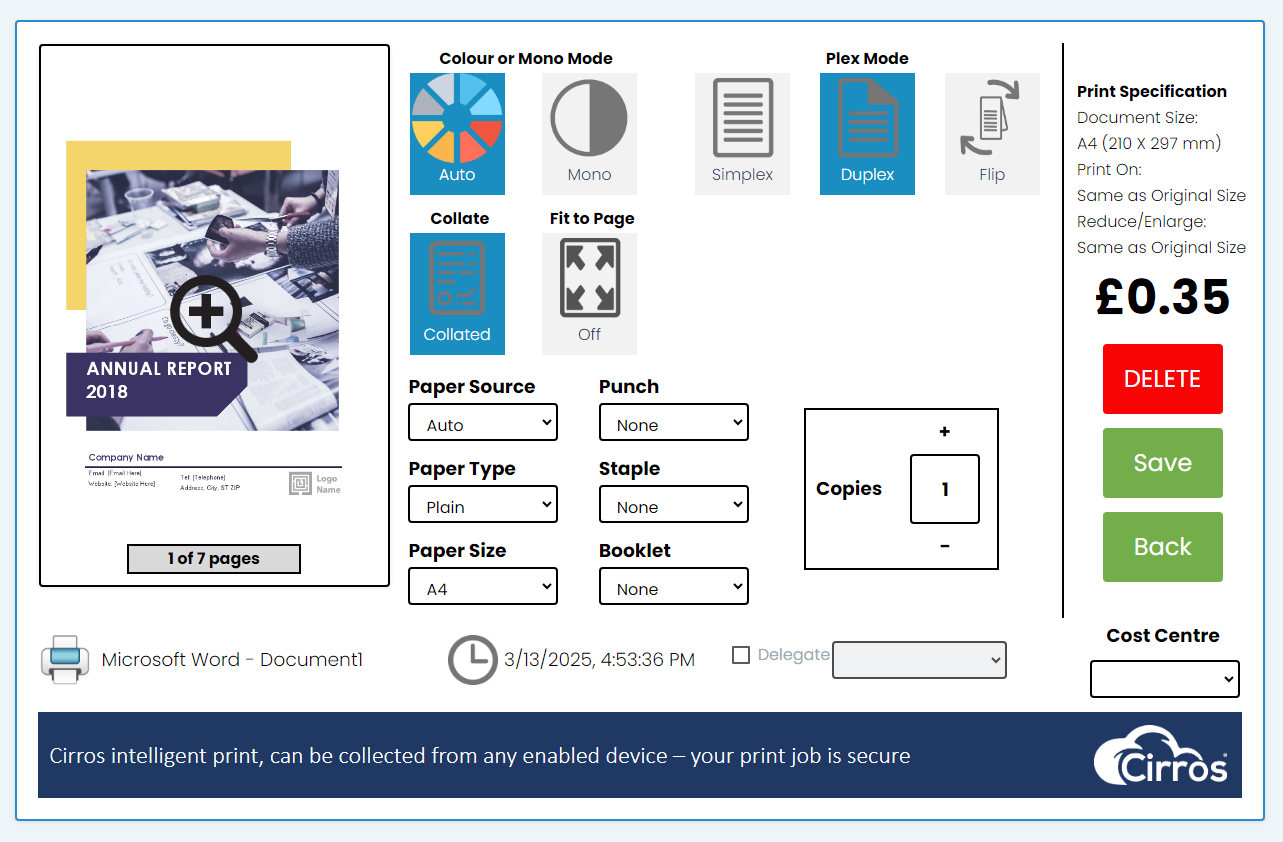
- Open the job. In My Print Jobs, select the print job. The Cirros Print application appears.
- Edit it. To change the print specification, adjust the colour, plex mode, paper type, copies and so on, then select Save.
- Or delete it. To delete the job, select DELETE.
Direct Submission
Direct Submission sends print jobs straight to the cloud from your chosen application, without the Cirros Print application appearing. For a step-by-step walkthrough, see Direct Submission: print without the print window.
Enable Direct Submission
- Turn it on. Right-click the Cirros icon in the system tray and select Enable Direct Submission.
- Print as normal. In any application, select Send to Cirros as the printer and select Print. Your document is sent straight to the cloud.
- Check the confirmation. A Windows notification confirms the document was submitted successfully.
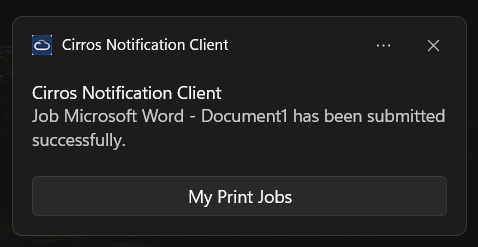
To change the print job specification (colour, plex mode, paper type, copies and so on), select My Print Jobs in the notification, or see My Print Jobs above.
Disable Direct Submission
- Turn it off. Right-click the Cirros icon in the system tray and select Disable Direct Submission.
- Print as normal. In any application, select Send to Cirros as the printer and select Print. The Cirros Print application appears.
- Choose your options. Adjust your print job specification (colour, plex mode, paper type, copies and so on), then select Print to Cloud or Direct Print.