
Printing fails after the computer restarts
On some computers, Cirros printing stops working after the computer has been switched off and on again. This page shows how to get the computer printing again, and what your IT team can check to stop it happening.
In GovPrint organisations the printer is called Send to GovPrint instead of Send to Cirros. The steps are the same.
What is happening
When the computer starts, the Cirros service connects to the Cirros cloud to check the workstation. On the affected computers, something on the computer cuts that first connection. The Cirros logs then show this error:
An established connection was aborted by the software in your host machine.
The error means the connection was stopped on the computer itself, not by Cirros or the network. It is usually caused by security software, such as endpoint protection, a web filter or a local firewall, that inspects connections while the computer is starting up.
Get the computer printing again
Reset Cirros on the computer with Troubleshoot Printing.
- Open the Cirros menu. Right-click the Cirros icon in the Windows notification area, at the bottom-right of the screen. If you can't see it, click the ^ arrow to show hidden icons.
- Choose Troubleshoot Printing.
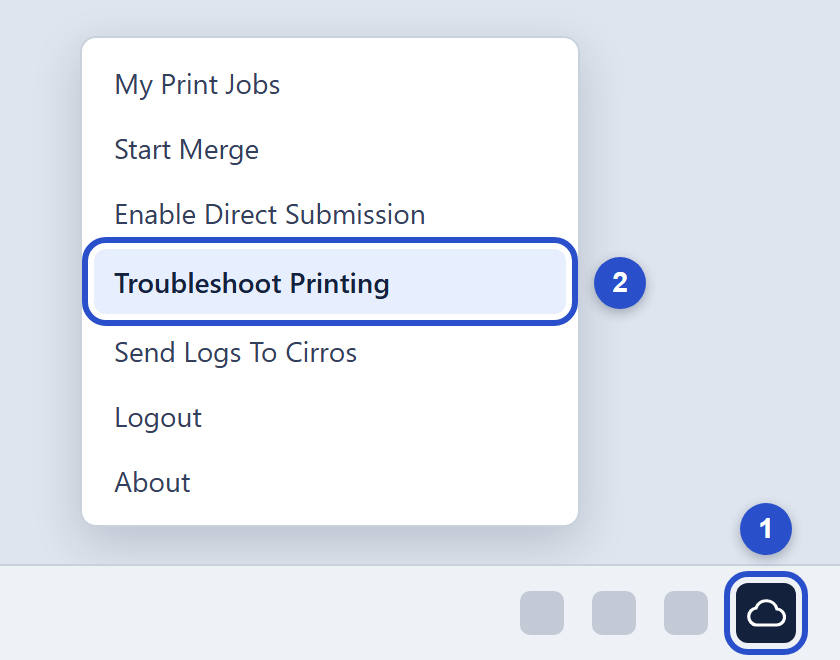
Right-click the Cirros icon (1), then choose Troubleshoot Printing (2). - Run the check. Press Run check and wait for the checks to finish.
- Show the advanced options. When the results appear, choose Show advanced options.
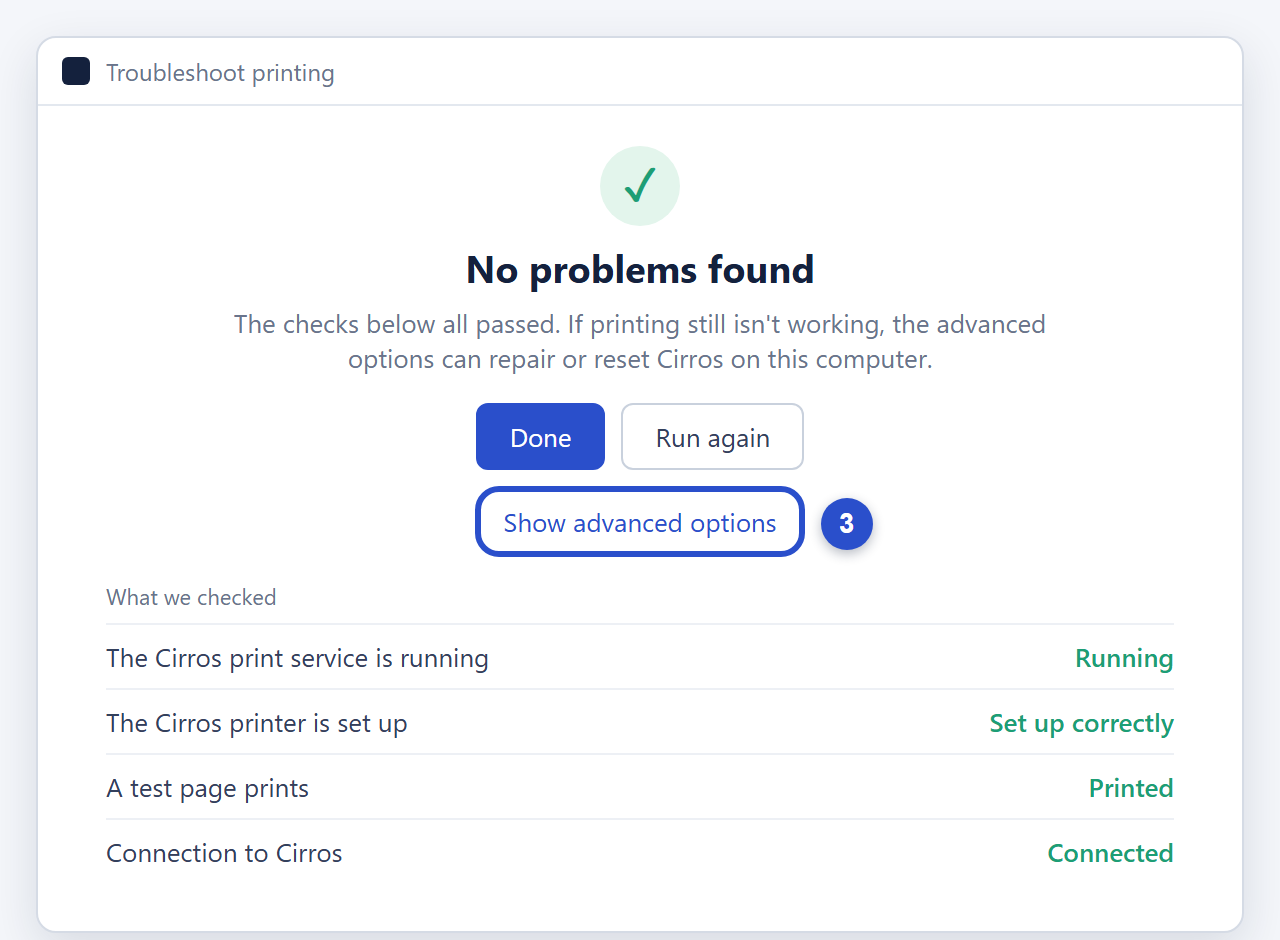
When the check has finished, choose Show advanced options (3). - Choose Full reset. Under the advanced options, choose Full reset and follow the prompts.
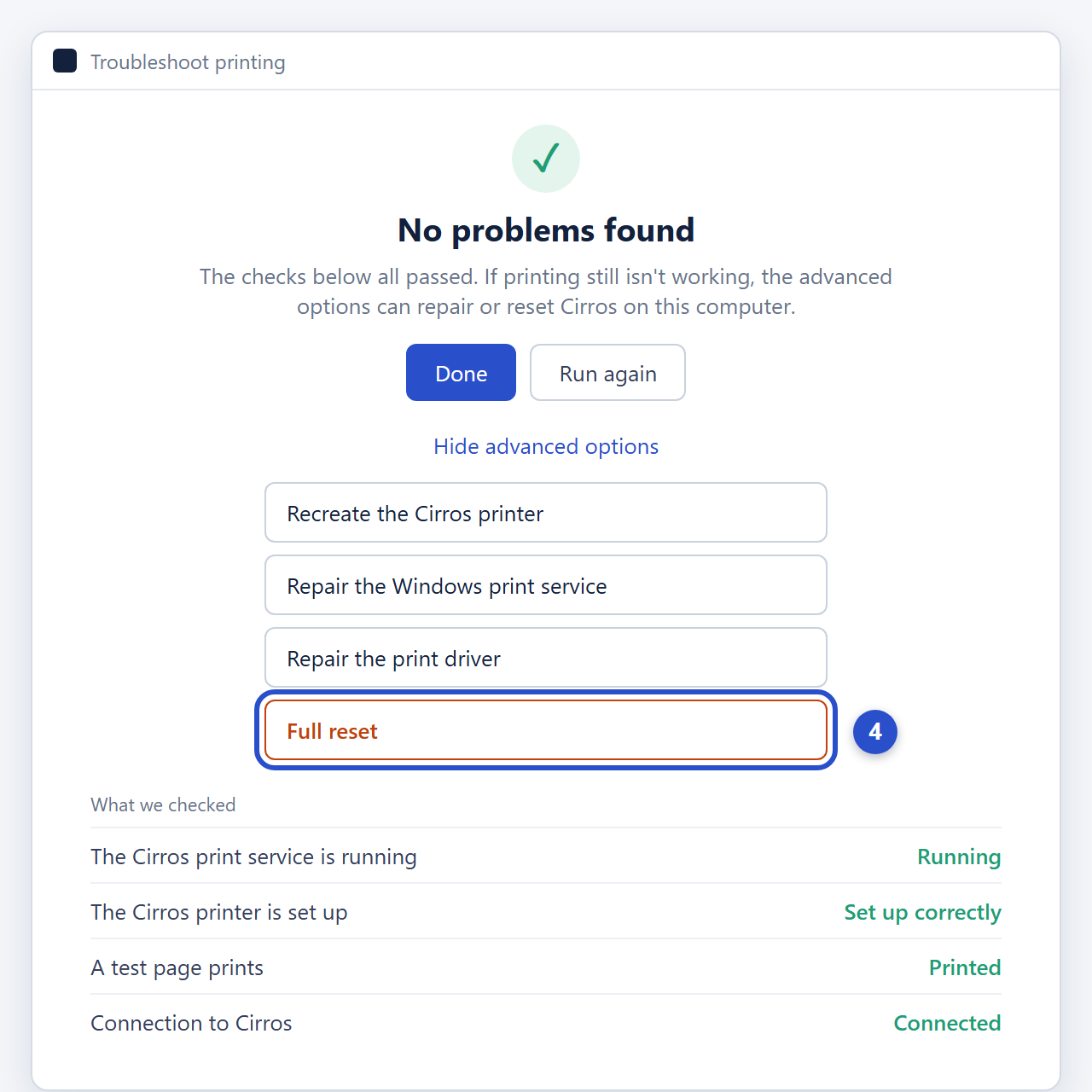
Choose Full reset (4). - Print again. Send a test print and release it at a printer.
Shared computers. On shared (multi-user or remote desktop) computers, Troubleshoot Printing is read-only, so one person can't disrupt printing for others. Ask your IT team to run the reset.
Stop it happening again
A reset gets the computer printing again, but the problem can come back after the next cold start. To stop it, ask your IT team to check the security software on the affected computers:
- Allow the Cirros service to connect to uk.cirrossl.net on HTTPS (port 443), including while the computer is starting up.
- Make sure cirros.net and *.cirrossl.net are allowed through any firewall, proxy or packet inspection, and not delayed or held for scanning.
- Look in the security software's logs for blocked or reset connections from the Cirros service at start-up.
We're working on a fix. We're looking at changing a future Cirros Windows client release to cope with a short block like this at start-up, so it no longer stops printing. See Release notes for when it is available.
Still not working?
Choose Send Logs To Cirros from the same Cirros menu, then contact your service desk with the computer name and the time the problem happened.